### [手把手教你在微信小程序中使用canvas+Painter插件制作二维码](https://www.prosaas.cn/article/16359)
**Published:** 2021-11-04T02:47:17
**Author:** 5201314
**Excerpt:** 本篇文章给大家介绍一下在微信小程序中使用canvas+Painter插件制作二维码的方法,希望对大家有所帮助!…
本篇文章给大家介绍一下在微信小程序中使用canvas+Painter插件制作二维码的方法,希望对大家有所帮助!

在日常的小程序项目中,会经常遇到需要动态绘制二维码的需求。使用场景很多,例如绘制在海报上,例如制作票务码、核销码等等。
这篇文章是应一位好友的需求而写的,也希望能够给有需要的同学一些帮助。
## **一、实现原理**
使用微信小程序的canvas组件进行绘制,但是在该组件用起来并不是很顺手,所以使用了第三方的框架:Painter
Painter的Github地址:https://github.com/Kujiale-Mobile/Painter
用你的方法,把这个框架下载下来,里面会有示范代码,我们只需要把其中的核心代码拿出来就行。
对于框架的使用介绍,大家可以前往github浏览,我这就直接上手了。【相关学习推荐:小程序开发教程】
## **二、实现代码**
**前期准备**
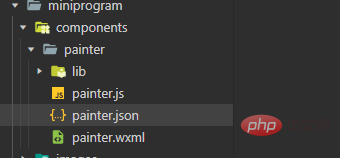
1、新建components文件夹,放置painter核心代码
2、新建palette文件夹,放置绘制实现代码
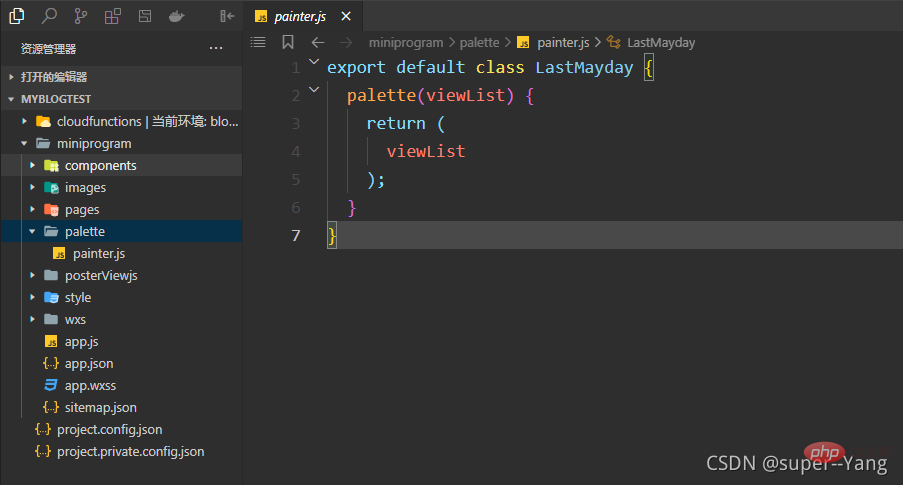
painter.js代码
export default class LastMayday {
palette(viewList) {
return (
viewList
);
}
}
3、新建绘制的具体属性信息文件夹posterViewjs,放置例如绘制的大小、位置等信息js。
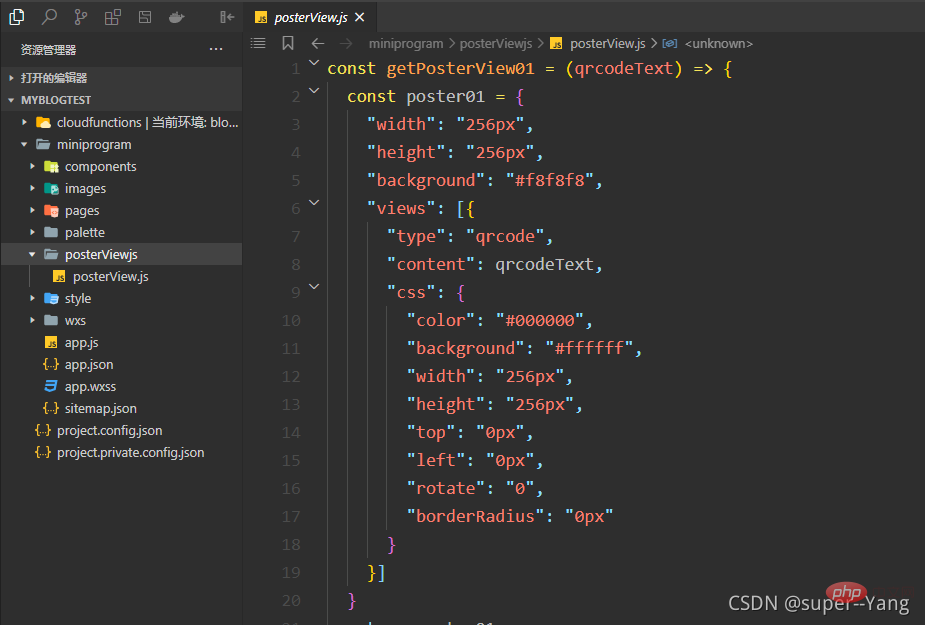
二维码绘制属性信息js代码
const getPosterView01 = (qrcodeText) => {
const poster01 = {
"width": "256px",
"height": "256px",
"background": "#f8f8f8",
"views": \[{
"type": "qrcode",
"content": qrcodeText,
"css": {
"color": "#000000",
"background": "#ffffff",
"width": "256px",
"height": "256px",
"top": "0px",
"left": "0px",
"rotate": "0",
"borderRadius": "0px"
}
}\]
}
return poster01
}
module.exports = {
getPosterView01: getPosterView01
}
**实现**
**实现页面目录结构**

**wxml代码**
**wxss代码**
.qrcode-img{
background-color: #999999;
height: 300rpx;
width: 300rpx;
}
**json代码**
注意记得在使用的页面引用painter组件
{
"usingComponents": {
"painter":"/components/painter/painter"
},
"navigationBarTitleText": "绘制二维码"
}
**JS代码**
// pages/makeQRCode/makeQRCode.js
import poster from '../../palette/painter'
const posterView = require("../../posterViewjs/posterView")
Page({
/\*\*
\* 页面的初始数据
\*/
data: {
imgUrl: null,
QRCodeText: "2d44d6c26134f8a109df65897107089a2d44d6c26134f8a109df65897107089a",
paintPallette: '',
},
/\*\*
\* 生命周期函数--监听页面加载
\*/
onLoad() {
},
/\*\*
\* 生命周期函数--监听页面显示
\*/
onShow () {
},
/\*\* 生成海报点击监听 \*/
makeQRCodeTap() {
wx.showLoading({
title: '获取海报中',
mask: true
})
// 绘制海报
this.makePoster(this.data.QRCodeText)
},
/\*\* 绘制完成后的回调函数\*/
onImgOK(res) {
wx.hideLoading()
// 这个路径就可以作为保存图片时的资源路径
// console.log("海报临时路径", res.detail.path)
this.setData({
imgUrl: res.detail.path
})
},
/\*\* 生成海报 \*/
makePoster(qrcodeText) {
wx.showLoading({
title: '生成海报中',
})
// 这是绘制海报所用到JSON数据
const viewList = posterView.getPosterView01(qrcodeText)
this.setData({
paintPallette: new poster().palette(viewList)
})
},
/\*\*
\* 用户点击右上角分享
\*/
onShareAppMessage() {}
})
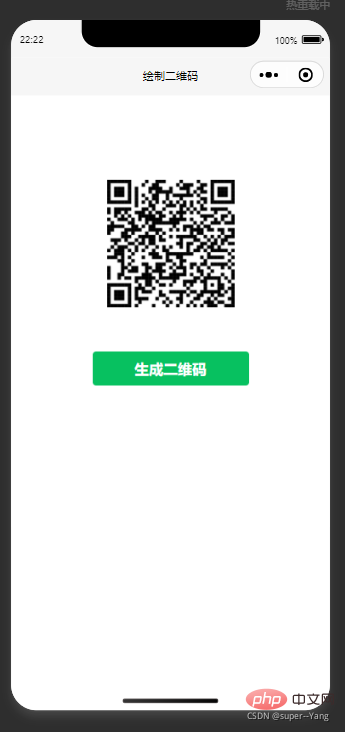
**实现效果**
## **三、结语**
实际开发中的其他逻辑就不写了。需要同学们自己去考虑异常情况处理等问题啦。
以上均是本人开发过程中的一些经验总结与领悟,如果有什么不正确的地方,希望大佬们评论区斧正。
> 本文转载自:https://blog.csdn.net/weixin\_44702572/article/details/120443998
>
> 作者:super--Yang
更多编程相关知识,请访问:编程入门!!
以上就是手把手教你在微信小程序中使用canvas+Painter插件制作二维码的详细内容,更多请关注知企PROSAAS其它相关文章!
**Categories:** 后端开发
---