### [使用 Envato WordPress 工具包增强您的主题:库](https://www.prosaas.cn/article/5532)
**Published:** 2023-09-02T04:41:01
**Author:** 5201314
**Excerpt:** 在本教程的最后一部分中,我们学习了如何使用 TGM 插件激活类来在任何时候都需要 Envato WordPre…
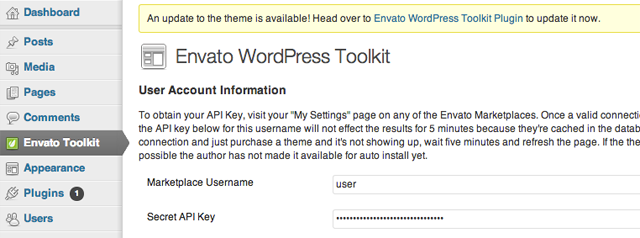
在本教程的最后一部分中,我们学习了如何使用 TGM 插件激活类来在任何时候都需要 Envato WordPress 工具包插件我们的主题正在使用中。该插件允许用户在管理员中安装和更新购买的主题。
下一部分将教您如何实现 Envato WordPress 工具包库,以便我们可以使用 Envato Marketplace API 定期检查我们的主题何时有可用更新。
当有更新可用时,我们将在管理员中显示通知,并引导用户访问插件进行更新。
* * *
## 1. 包括工具包库
我们首先需要将工具包库包含在我们的项目中。下载 Envato WordPress 工具包库 ZIP 文件。解压缩并将文件夹 **envato-wordpress-toolkit-library** 复制到主题中的 **inc** 文件夹中。您最终应该得到这些路径:
- **mytheme/inc/envato-wordpress-toolkit-library/class-envato-protected-api.php**
- **mytheme/inc/envato-wordpress-toolkit-library/class-envato-wordpress-theme-upgrader.php**
_**注意:**您可以更改上述文件的位置以满足您的需要。或者,您可以从本文顶部的下载链接下载完整源代码。_
* * *
## 2. 管理员挂钩函数
现在我们可以开始编码了。我们将挂钩 `admin_init` 操作。将以下代码添加到您的 **functions.php** 中:
/\*\*
\* Load the Envato WordPress Toolkit Library check for updates
\* and direct the user to the Toolkit Plugin if there is one
\*/
function envato\_toolkit\_admin\_init() {
// Include the Toolkit Library
include\_once( get\_template\_directory() . '/inc/envato-wordpress-toolkit-library/class-envato-wordpress-theme-upgrader.php' );
// Add further code here
}
add\_action( 'admin\_init', 'envato\_toolkit\_admin\_init' );
* * *
## 3. 使用工具包插件信息
工具包库需要 Envato 用户名和 API 密钥才能工作。由于我们在上一个教程中需要 Toolkit 插件,因此我们可以使用在其设置中找到的用户名和 API 密钥字段的输入值。如果这些字段未填写,我们可以显示一条通知,要求用户在 Toolkit 插件中输入它们。
// Use credentials used in toolkit plugin so that we don't have to show our own forms anymore
$credentials = get\_option( 'envato-wordpress-toolkit' );
if ( empty( $credentials\['user\_name'\] ) || empty( $credentials\['api\_key'\] ) ) {
add\_action( 'admin\_notices', 'envato\_toolkit\_credentials\_admin\_notices' );
return;
}
我们需要在外部添加相应的钩子函数来显示我们的管理通知:
/\*\*
\* Display a notice in the admin to remind the user to enter their credentials
\*/
function envato\_toolkit\_credentials\_admin\_notices() {
$message = sprintf( \_\_( "To enable theme update notifications, please enter your Envato Marketplace credentials in the %s", "default" ),
"Envato WordPress Toolkit Plugin" );
echo "";
}
* * *
## 4.定期更新检查
工具包库始终使用 Envato Marketplace API 检查主题更新。这并不好,因为每次用户访问管理页面时都执行它会显着减慢页面加载时间。我们只需要定期检查更新即可。
每 3 小时检查一次听起来是个好主意:
// Check updates only after a while
$lastCheck = get\_option( 'toolkit-last-toolkit-check' );
if ( false === $lastCheck ) {
update\_option( 'toolkit-last-toolkit-check', time() );
return;
}
// Check for an update every 3 hours
if ( 10800 < ( time() - $lastCheck ) ) {
return;
}
// Update the time we last checked
update\_option( 'toolkit-last-toolkit-check', time() );
* * *
## 5. 检查更新
最后,我们可以使用该库检查更新:
// Check for updates
$upgrader = new Envato\_WordPress\_Theme\_Upgrader( $credentials\['user\_name'\], $credentials\['api\_key'\] );
$updates = $upgrader->check\_for\_theme\_update();
// If $updates->updated\_themes\_count == true then we have an update!
* * *
## 6.主题更新通知
从这一刻起,您可以选择使用工具包库函数 `$upgrader->upgrade_theme();` 自动更新主题,但是,我相信给用户一个选择通常是一个好主意。
我的建议是只显示主题更新的通知,并允许用户使用 Toolkit 插件进行更新:
// Add update alert, to update the theme
if ( $updates->updated\_themes\_count ) {
add\_action( 'admin\_notices', 'envato\_toolkit\_admin\_notices' );
}
我们需要在当前函数之外显示显示通知的函数:
/\*\*
\* Display a notice in the admin that an update is available
\*/
function envato\_toolkit\_admin\_notices() {
$message = sprintf( \_\_( "An update to the theme is available! Head over to %s to update it now.", "default" ),
"Envato WordPress Toolkit Plugin" );
echo "";
}
* * *
## 为什么首先使用该插件?
您可能认为也可以_只使用 Toolkit 库而不使用 Toolkit 插件_,然后也许只在主题选项中显示我们自己的用户名和 API 密钥表单.
虽然这是完全可能做到的,但使用该插件给我们带来了一些好处:
1. 在全新主题激活中,如果之前已安装 Toolkit 插件,我们的主题将自动检查更新。
2. 我们不需要添加一组额外的表单供用户填写。
3. 用户可以自行更新 Toolkit 插件,因此 Marketplace API 中的更改可以应用于 WordPress 实例,而无需任何主题指导。
* * *
## 结论
就是这样!我们集成了 Envato WordPress 工具包插件和库来检查主题更新。现在,一旦市场中有更新可用,我们的客户就会收到管理员通知。我们所做的最好的事情是他们可以轻松执行更新而无需离开管理员。
您可以继续从文章上方的链接下载完整的源代码。该代码还包含本教程前一部分中涵盖的主题。
由于这是我的第一个教程系列,我非常感谢任何反馈、评论和建议。让我知道你的想法!
以上就是使用 Envato WordPress 工具包增强您的主题:库的详细内容,更多请关注知企PROSAAS其它相关文章!
**Tags:** class, php, protected, WordPress
**Categories:** WordPress
---